Humor is the most engaging type of content on social media right now. In its 2026 Social Media Marketing Report, HubSpot surveyed more than 1,100 marketers and found that funny posts drove the highest engagement of any format, around 30%, ahead of brand and product content near 25% and educational posts near 13% (HubSpot, 2026). So why do so many people still think making one means opening Photoshop?
It doesn’t. With the right app, you can make a meme on your phone and post it in seconds, with no design skills and no account. This guide shows you exactly how, on both iPhone and Android, using three different methods. You’ll also get the correct meme sizes for each platform and the simple mistakes that get memes scrolled past.
We build MemeFast, a free meme maker that has powered more than 50,000 memes and holds a 4.8 star rating, so the screenshots below come straight from the app. The steps work the same whether you start from a template, a single line of text, or a photo in your camera roll.
Key Takeaways
- You can make a meme on your phone in under a minute with a free app, no account and no design skills needed.
- Three methods cover every situation: pick a template, type an idea and let AI build it, or upload your own photo.
- Funny content drives the highest social engagement of any format, around 30% in 2026 (HubSpot 2026 Social Media Marketing Report).
- Match the meme size to the platform for a clean result: 1080 x 1080 or 1080 x 1350 for Instagram, 1080 x 1920 for TikTok and Reels.
- MemeFast is free forever, works offline, and removes the watermark on PRO for $2.99 a month.
What Is the Fastest Way to Make a Meme on Your Phone?
The fastest way is a dedicated meme app: open it, choose a template or type your idea, add a caption, then share, all in under 30 seconds. A phone app beats a website here because it works offline, saves straight to your camera roll, and posts to the same apps you already have open.
Is it worth the minute it takes? The data says yes. In its 2026 Social Media Marketing Report, HubSpot found humorous posts drove the highest engagement of any content format, roughly 30%, beating brand and product content near 25% and educational content near 13% (HubSpot, 2026). It isn’t a new pattern either: in Oracle’s 2022 Happiness Report, 91% of people said they prefer brands that make them laugh (Oracle, 2022). A meme is the cheapest piece of high performing content you can make today.
Chart 1: Content Formats That Drive the Most Engagement (2026)
The rest of this guide is the how. Want to skip template hunting entirely? Jump to the AI meme generator method below.
What Do You Need to Make a Meme on Your Phone?
Almost nothing. Making a meme on your phone is a beginner task that takes about a minute from a standing start. Here is the short checklist.
- A phone: any iPhone or Android device.
- A free meme app: MemeFast on the App Store or Google Play. No account is required to start.
- Optional: a photo in your camera roll, if you want a custom meme instead of a template.
- Time: under one minute.
- Difficulty: beginner. No editing experience needed.
That’s it. You don’t need a subscription, a desktop, or any design background to follow along.
How to Make a Meme on Your Phone in 4 Steps
Every meme follows the same path: choose a starting point, add a caption, then save and share. Below is the full process on both iPhone and Android. Each step has a screenshot so you can match your screen to the guide.
Step 1: Open the App and Skip the Signup
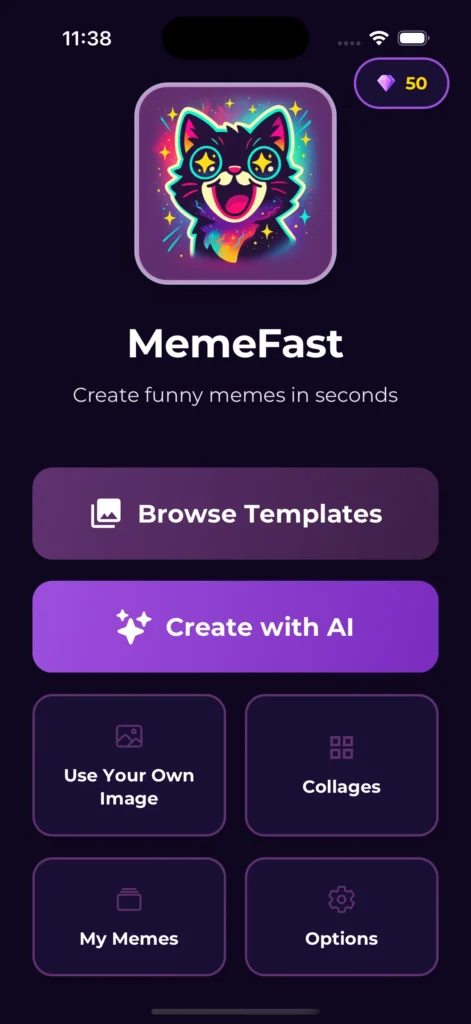
By the end of this step you’ll have a blank canvas ready to edit. Open MemeFast and you land directly on the meme library. There’s no account screen and no email to confirm, so you go from tap to creating in one move.
- Install MemeFast from the App Store or Google Play.
- Open the app. It loads straight to templates and the AI button.
- Confirm you can browse templates with no login prompt.
If you see the template grid, you’re ready for Step 2.
Step 2: Choose a Template, AI, or Your Own Photo
By the end of this step, you’ll have your base image on screen. This is where the three methods split. Pick the one that fits your idea, then move on. All three land in the same editor.
- Template: search for a format like “cat” or “distracted boyfriend,” then tap it.
- AI: Tap the AI button and type your idea in plain words.
- Photo: tap upload and choose any image from your camera roll.
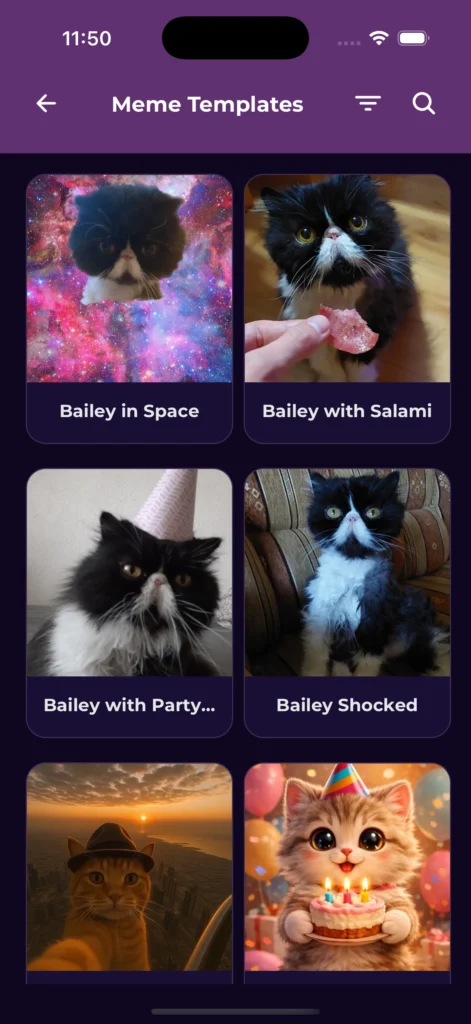
Not sure which to use? Templates are fastest for a known format, AI is best when you have a feeling but no format in mind, and your own photo wins when the joke is personal.
Step 3: Add and Position Your Caption
By the end of this step, your meme reads clearly at a glance. Tap a text field, type your line, then drag it into place. The goal is short, punchy text that anyone can read on a small preview.
- Tap the top or bottom text box and type your caption.
- Adjust font, size, color, and outline so the words pop over the background.
- Drag each line to position it, then pinch to resize if needed.
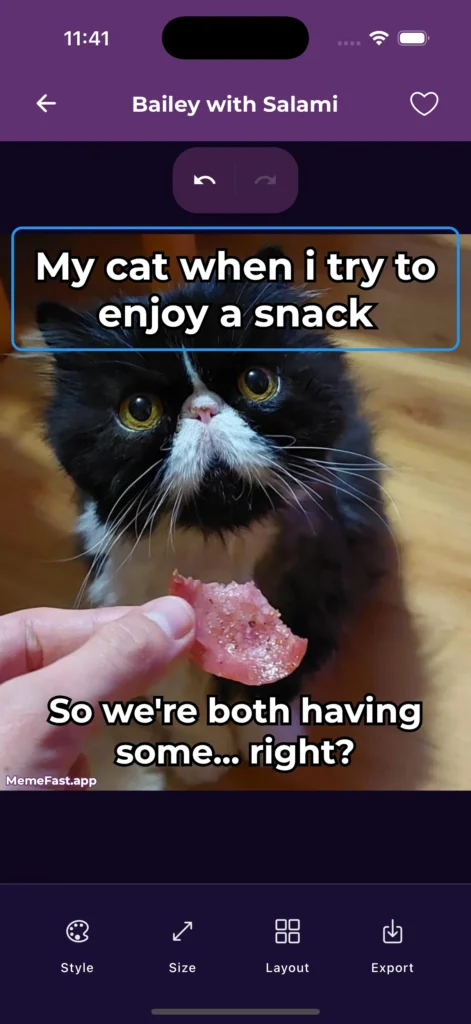
Check that the text stays readable over the busiest part of the image. A white font with a dark outline survives almost any background.
Step 4: Save and Share in One Tap
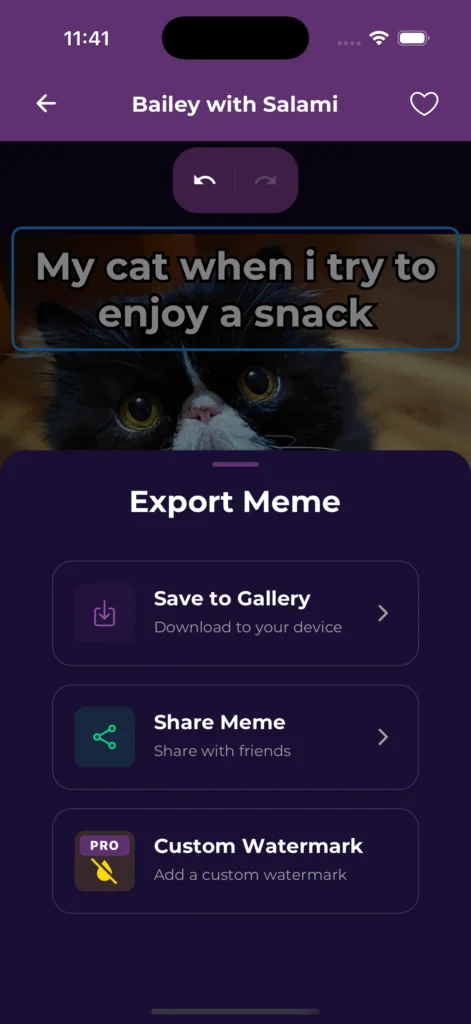
By the end of this step, your meme is posted or saved. MemeFast exports to your camera roll and hands off to your social apps directly, so there’s no file transfer between devices.
- Tap save to send a copy to your camera roll.
- Tap share to post straight to Instagram, TikTok, Reddit, or a group chat.
- Pick the right size for the platform (see the table below).
That’s the whole loop. Now let’s cover the AI method in more detail, because it’s the part most people find surprising.
How Do You Make a Meme With AI on Your Phone?
You type a situation in plain words, and the AI picks a fitting template and writes the caption for you. Modern meme generators read tone and humor style, match your prompt to a known format, then drop in text that fits the joke, so you skip both the template search and the writing.
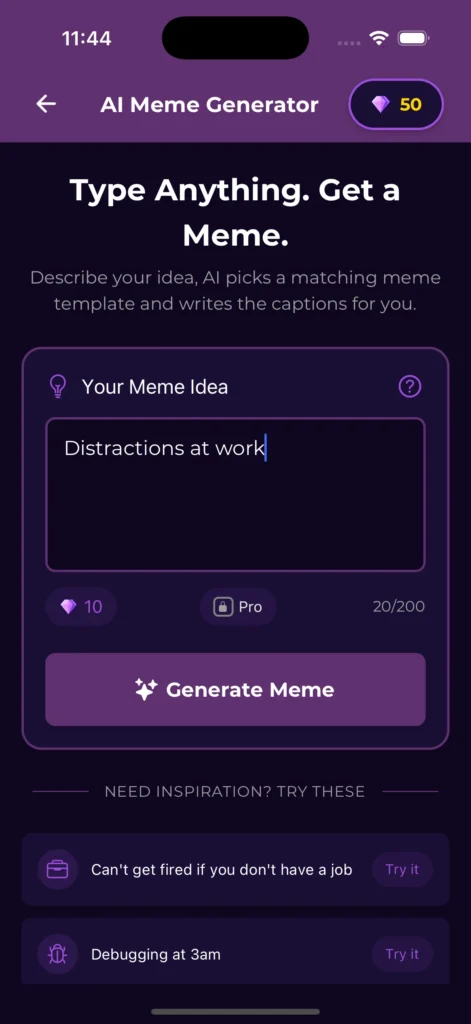
The workflow is short: type a prompt, let the app generate, then tweak if you want. An AI meme generator can turn almost any input, a topic, a feeling, or a one liner, into a finished meme in seconds. That removes the slowest part of the job for most people.
What we’ve seen: The slowest step in making a meme isn’t editing. It’s deciding which template fits the joke. Letting AI choose the format from your text removes that hesitation, which is why first time users tend to finish faster when they start from the AI prompt instead of the template grid.
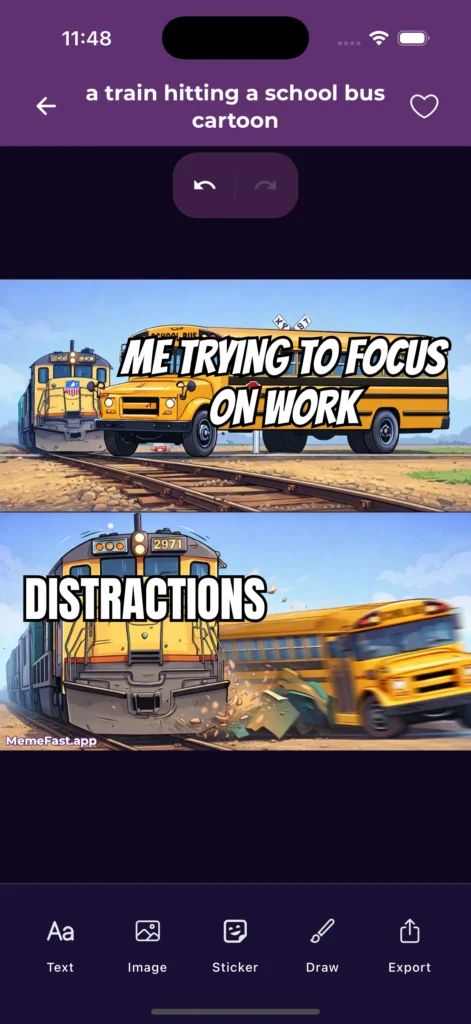
Curious how the AI options compare across apps? We tested ten of them in our guide to the best AI meme generators.
How Do You Turn Your Own Photo Into a Meme?
Upload any image, add a caption, and export. Your own photos make the most original memes because nobody else has the same picture, and a screenshot, a selfie, or a pet photo often feels more relatable than a template everyone has seen.
- Tap upload and pick a photo from your camera roll.
- Add a top and bottom caption, then size the text to fit.
- Save or share in your preferred dimensions.
Good meme photos show a clear emotion: surprise, frustration, or pure chaos. For a deeper walkthrough, see our guide on how to make your own meme from a photo.
What Are the Right Meme Sizes for Each App?
Match the meme to the platform’s shape, or it gets cropped. As of 2026, vertical and square formats outperform old desktop sizes on most networks, so build tall or square (Buffer, 2026). Use this quick reference before you export.
| Platform | Best meme size (pixels) | Aspect ratio |
|---|---|---|
| Instagram feed | 1080 x 1350 or 1080 x 1080 | 4:5 or 1:1 |
| Instagram Stories and Reels | 1080 x 1920 | 9:16 |
| TikTok | 1080 x 1920 | 9:16 |
| 1080 x 1080 or native | 1:1 or original | |
| X (Twitter) | 1080 x 1080 or 1200 x 675 | 1:1 or 16:9 |
| WhatsApp and group chats | 1080 x 1080 | 1:1 |
Quick tip: Export at full size first, then crop per platform. Starting big and cropping down keeps the meme sharp, while scaling a small image up makes it look pixelated and cheap.
A clean, correctly sized meme reads in a fraction of a second. A squished or blurry one gets scrolled past, no matter how good the joke is.
Does It Matter If You Use iPhone or Android?
No. With a cross platform app, the steps and the result are identical on iPhone and Android. The only real difference is the built in tools, and neither phone ships a true meme maker out of the box.
On iPhone, the Photos app lets you mark up an image with text, but it has no meme templates and no AI. On Android, the built in editors are similar. That’s why a dedicated app matters: it gives both phones the same templates, the same AI, and the same one tap sharing. MemeFast runs on iOS, Android, and the web from a single account free experience.
What Are the Most Common Phone Meme Mistakes?
Most memes that flop fail for a physical reason, not a comedy reason. The fixes below take seconds and make the difference between a share and a scroll.
1. Text too small to read. On a phone, your meme is first seen as a thumbnail. If the caption doesn’t read at that size, the joke never lands. Size up the font and add a bold outline.
2. The wrong dimensions. Posting a square meme to Reels crops it badly. Check the size table above before you export.
3. Too many words. The best captions are short. If your line needs two readings, cut it down.
4. Forcing a trend that doesn’t fit. In the 2025 Sprout Social Index, 33% of consumers said it’s embarrassing when a brand forces its way into a trend it clearly doesn’t understand (Sprout Social, 2025). Use a format only when it genuinely fits your idea.
Our take: When a phone meme underperforms, readability is the usual culprit, not the punchline. Fix the text size first, then worry about the joke. It’s the cheapest win available.
What Makes a Phone Meme Actually Get Shared?
Two things: surprise and relatability. Big Think’s breakdown of meme virality distills it to three rules: a meme has to be surprising, relatable, and good enough to stop the scroll (Big Think). A meme spreads when it catches you off guard and feels familiar at the same time.
In practice, that means a recognizable format, a feeling people share, and text short enough to read instantly. You don’t need to be a comedian. You need a true observation and a clear image. The app handles the rest, which is the whole point of making memes on your phone in the first place.
Frequently Asked Questions
Download a free meme app like MemeFast from the App Store, open it with no account, choose a template or type your idea, add your caption, then save or share. The process takes seconds. MemeFast is free forever, with an optional PRO upgrade at $2.99 a month.
Look for a meme maker with a large template library, AI captions, and offline support. MemeFast covers all three with more than 2,000 templates and a 4.8 star rating, and it runs without an account on any Android phone. The free tier has everything most people need.
Open your meme app, tap upload, and pick any image from your camera roll. Add a top and bottom caption, adjust the font and position, then export. Photos with a clear emotion work best. See our full guide on making a meme from a photo for a step by step walkthrough.
Tap the text field in your meme editor, type your caption, then drag it into place. Change the font, size, color, and outline so the words stay readable over any background. Keep captions short, since a meme is often first seen as a small thumbnail.
Yes, browser based meme makers work with no install, but a dedicated app is faster, works offline, and saves directly to your camera roll. MemeFast runs on iOS, Android, and the web, so you can start in a browser and finish in the app whenever you prefer.
Start Making Memes on Your Phone
Making a meme on your phone comes down to three moves: pick a starting point, add a caption, and share. With a free app like MemeFast, you go from idea to posted meme in under a minute, with no account and no design skills, on either iPhone or Android.
Ready to try it? Download MemeFast free and make your first meme in seconds. If you’d rather compare your options first, read our roundup of the best AI meme generators, or see how MemeFast stacks up as a Mematic alternative.
Sources: HubSpot 2026 Social Media Marketing Report (1,100+ marketers); Oracle Happiness Report (2022); 2025 Sprout Social Index; Big Think, “What Makes a Meme Take Off: The 3 Rules of Virality”; platform image size guides from Buffer and Hootsuite (2026). App details and pricing from MemeFast. Retrieved 2026-06-22.
Further reading:
I Make Memes on My Phone in 60 Seconds. Here’s the Embarrassingly Simple Method.
How I Make a Meme on My Phone in Under 60 Seconds (2026)
The MemeFast Team builds MemeFast, a free AI meme generator and meme maker app for iPhone, Android, and web, with more than 2,000 templates and AI captions. We have powered over 50,000 memes at a 4.8 star rating, and we write about meme creation, social media humor, and the tools that make content faster.